
Live audio
CRUMB plays what your circuit does through your computer’s speakers, and can feed real sound into it. A 555 squeals, an amplifier hums, and a guitar played into a distortion pedal you built comes out distorted, live.
Speakers, buzzers, jacks and microphones are ordinary parts: CRUMB comes with several, the Workshop has more, and you can make your own. Whatever the part, its sound settings work the same way.
Sound out
Section titled “Sound out”A part that makes sound, such as a speaker or a buzzer, plays the voltage across it through your computer’s speakers. Parts that make sound share these settings:
- Reference Voltage is the voltage that plays at full volume. Anything bigger is clipped, like an overdriven speaker. Raise it if your circuit swings more than that, and lower it to hear a quiet signal.
- Spatial Audio, when on, makes the sound come from where the part is on the bench, panning and fading as you move the camera, and losing its treble with distance. Off, the sound plays at full level wherever the camera is, like a direct feed. On Windows, off is also the way to get the lowest latency (see Latency).
- Volume Db, on parts that have it, trims the loudness in decibels without moving the point where the sound clips.
The part’s electrical settings, such as a speaker’s Impedance, set how hard it loads your circuit, so they change what you hear too.
Sound only plays while the simulation runs, and fades out when you pause. A steady DC level is removed, so a biased output sounds the way it would through a real coupling capacitor.
Sound in
Section titled “Sound in”A part that takes sound in, such as an audio jack or a microphone, feeds real sound into your circuit: from a WAV file, or live from a microphone or an audio interface. Parts that take sound in share these settings, and each part shows the ones that suit it:
- Wav Data holds a WAV file: press Load… to pick one. 8, 16, 24 and 32-bit and floating-point WAVs work; compressed formats don’t. The sound is saved inside your circuit, so it travels with it.
- Loop, when on, repeats the file for as long as the simulation runs. Off, it plays once per run.
- Use Microphone listens to a live input instead of the file.
- Input Device is the input to listen to. System default follows your computer’s setting. The app has one input device, so the last part to choose one sets it for all of them.
- Channel picks from a stereo source: 0 mixes both channels, 1 takes the left and 2 the right.
If your computer has no audio input at all, the Output Log says so, and the part hears silence.
Each part’s own settings decide what the sound becomes in your circuit. On an audio jack, for example, Amplitude is the voltage a full-scale sample swings to (consumer line level is about 0.45 V, and a guitar pickup is lower), and Output Impedance is how stiff the source is.
Sound quality and speed
Section titled “Sound quality and speed”The sound is the circuit’s own voltage, sampled on every electrical step. The SIMULATION tab’s electrical rate is therefore also your audio sample rate: the default, 100 kHz, is more than enough, and you can lower it to 48 kHz for a heavy circuit.
If the circuit can’t keep up with real time, sound plays in slow motion but keeps its pitch. Auto Throttle keeps simulated time continuous, so there are no gaps in the sound.
Latency
Section titled “Latency”Latency is the delay from playing a note to hearing it. There’s nothing to set in CRUMB: it picks the fastest path it can.
- Windows: with Spatial Audio off, CRUMB talks to the sound device directly. If your audio interface has an ASIO driver, CRUMB uses it for input and output together, with a very short buffer, fast enough to play along. Without one, sound goes through the shared Windows output, which is slower.
- macOS and Linux: sound goes through the system’s normal audio path, so expect a noticeable delay when playing an instrument live. macOS asks for permission to use the microphone the first time.
Example: play a guitar through a pedal you built
Section titled “Example: play a guitar through a pedal you built”Build a distortion pedal on the bench, plug in a real guitar and hear it as you play.
- Plug the guitar into your audio interface.
- Add a part that takes sound in, such as an audio jack. Turn on its Use Microphone, and choose your interface as the Input Device.
- Set its level to roughly your pickup’s, around 0.15 V for a typical guitar. On an audio jack, that’s Amplitude.
- Build the pedal from there to an amplifier and a speaker. Turn the speaker’s Spatial Audio off, and raise its Reference Voltage above the voltage your amplifier swings.
- Press Run Simulation and play.
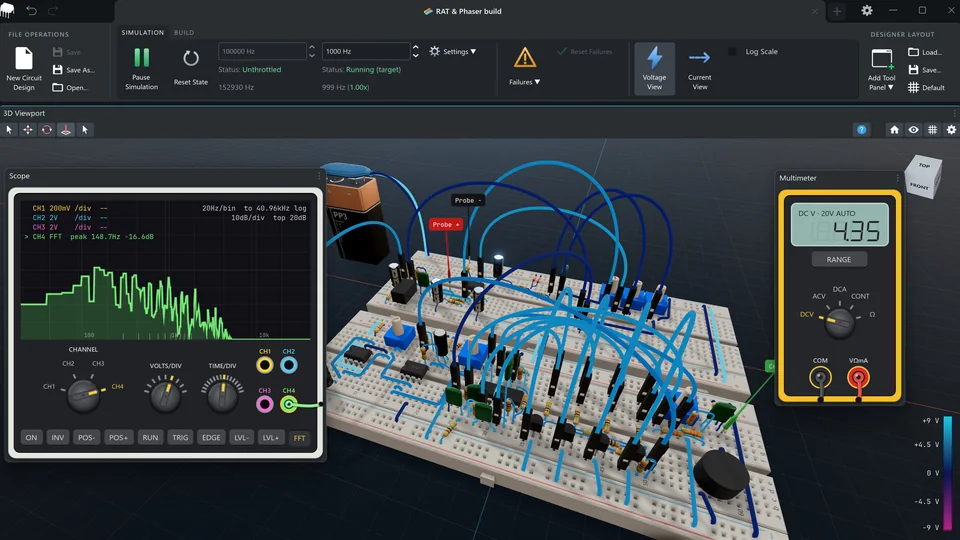
Put the scope on the signal while you play, with its FFT on, to see the harmonics the pedal adds.
Keep your ears safe
Section titled “Keep your ears safe”There’s no volume limit beyond the clipping at full scale, and a circuit can easily make a full-scale square wave. Turn your system volume down before you run something new, and wear headphones when you use a microphone: a laptop’s built-in microphone next to its speakers will feed back.