Instruments
CRUMB’s instruments work like the ones on a real bench: you put probes on the circuit and read what’s there. They read the simulation itself, so a measurement can load the circuit the way a real meter does.
Opening an instrument
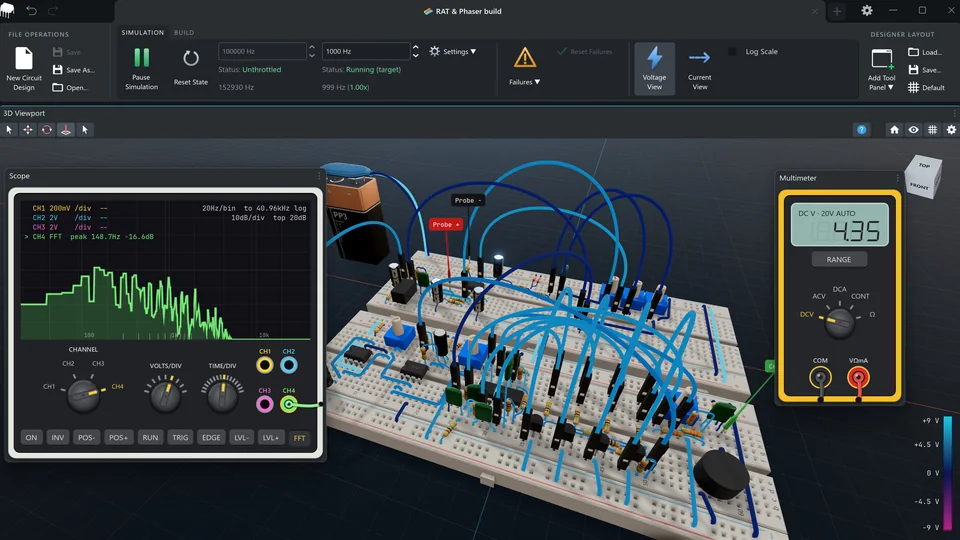
Section titled “Opening an instrument”On the ribbon, under DESIGNER LAYOUT, press Add Tool Panel ▼ and choose Multimeter or Scope. Each opens in its own floating window. You can have one multimeter and one scope at a time.
Use the window’s menu to Dock it into the layout or Undock it again. Save… and Load… under DESIGNER LAYOUT keep your window layout, including each instrument’s settings, for next time.
Probes
Section titled “Probes”Each instrument has jacks for its probes. Click an empty jack to plug its probe in: the probe appears in the middle of the 3D view. Drag it onto a pin, a breadboard hole or the end of a wire, and it clips on. Click the jack again to unplug the probe.
- A probe’s jack lights up once the probe is touching something.
- Right-click a jack to Find in viewport (it selects the probe and frames it) or Place it again, in view.
- Each probe has a label in the 3D view, so you can always find it.
Probes are saved with the circuit. Closing an instrument leaves its probes where they are, and reopening it picks them up again.
The multimeter
Section titled “The multimeter”The multimeter has five positions on its dial, which you turn by clicking a label, dragging the knob or scrolling over it:
| Position | Measures | How to connect it |
|---|---|---|
| DCV | DC voltage | Across the part, red to the higher side. |
| ACV | The AC part of a voltage, as RMS | Across the part. |
| DCA | DC current | In series: break the circuit and put the meter in the gap. |
| CONT | Continuity | Across the part, with the power off. Shows the resistance when it’s 50 Ω or less, otherwise OPEN. |
| Ω | Resistance | Across the part, with the power off. |
Plug the black probe into COM and the red one into VΩmA.
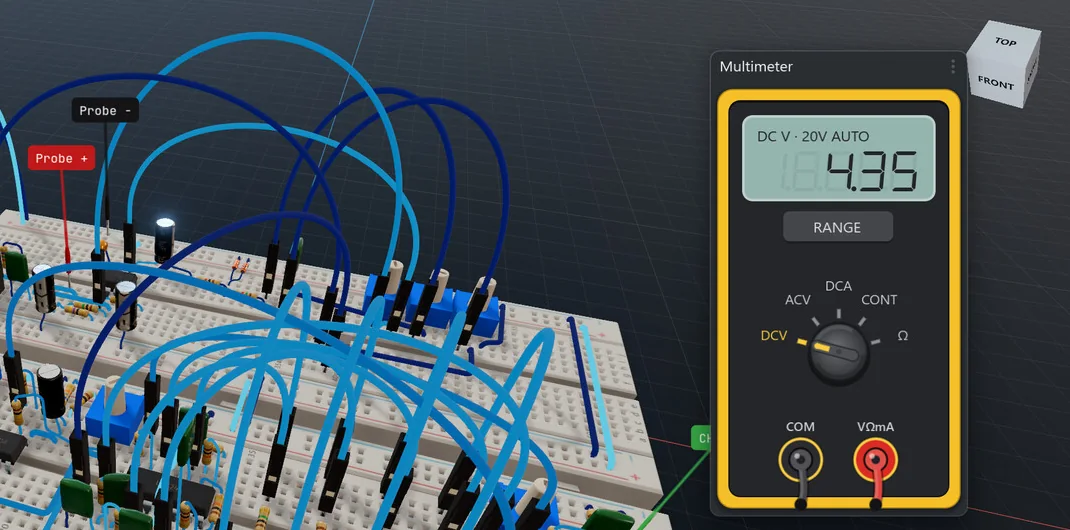
RANGE steps from AUTO through the fixed ranges and back to AUTO. The line above the digits shows the mode and range, such as DC V · 20V AUTO.
| Mode | Ranges |
|---|---|
| Volts | 200 mV, 2 V, 20 V, 200 V, 1000 V |
| Amps | 200 µA, 2 mA, 20 mA, 200 mA, 10 A |
| Ohms | 200 Ω, 2 kΩ, 20 kΩ, 200 kΩ, 2 MΩ |
Reading it
Section titled “Reading it”- OL means the value is over the range. Turn the range up, or use AUTO.
- –– means a probe isn’t touching anything, or is still being moved.
- Like a real meter, it loads the circuit. On volts it puts 10 MΩ across the probes, so a wire that isn’t connected to anything reads near 0 V rather than a stray voltage. On amps it puts 0.01 Ω in the gap.
- Resistance and continuity send a small test current through the part. On a powered circuit their readings mean nothing, just as on a real meter.
- DCV and DCA show the latest value, so the digits jump about on a PWM signal. ACV averages over the last few hundredths of a second.
The scope
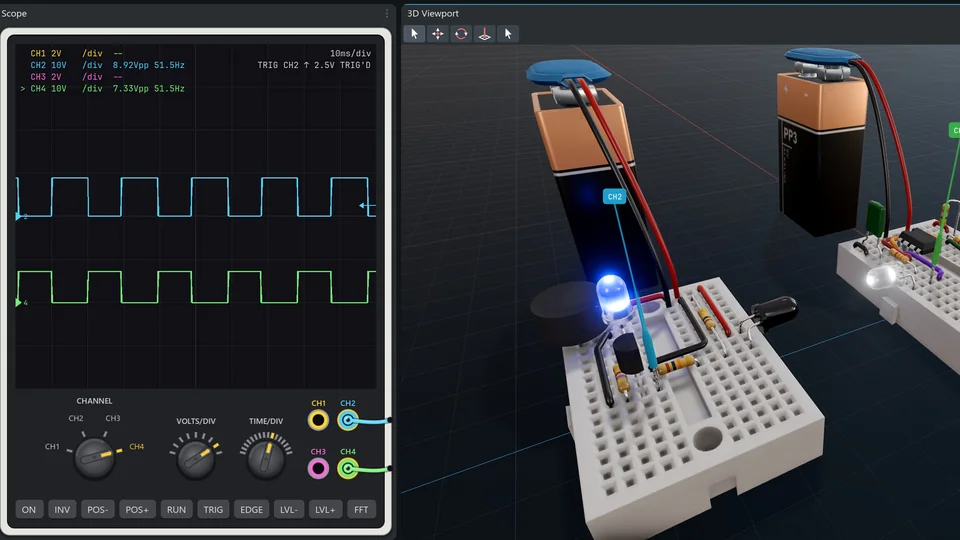
Section titled “The scope”The scope has four channels, each with its own colour, probe and readout: CH1 yellow, CH2 cyan, CH3 magenta and CH4 green. Its probes measure against ground, the negative side of your power source, so there’s no ground lead to connect.
Controls
Section titled “Controls”The knobs can be dragged, clicked or scrolled.
| Control | What it does |
|---|---|
| CHANNEL | Picks which channel the buttons and VOLTS/DIV act on. |
| VOLTS/DIV | The vertical scale for that channel, from 50 mV to 20 V per division. |
| TIME/DIV | The horizontal scale, from 10 µs to 1 s per division. |
| ON | Shows or hides the channel. |
| INV | Turns the channel upside down. |
| POS- / POS+ | Moves the trace down or up. Hold to keep moving. |
| RUN | Freezes the screen and starts it again. STOP shows while it’s frozen. |
| TRIG | Picks the channel the trigger watches. |
| EDGE | Triggers on a rising or a falling edge. |
| LVL- / LVL+ | Moves the trigger level. A small arrow on the right of the screen shows where it is. |
| FFT | Switches the selected channel to its spectrum. |
Reading it
Section titled “Reading it”The screen is ten divisions across and eight high. A numbered arrow on the left marks each channel’s 0 V. Each channel’s readout shows its scale, its peak-to-peak voltage and its frequency, such as CH1 2V/div 3.3Vpp 1kHz. The top right shows the timebase and the trigger, and whether it has TRIG’D or is free-running on AUTO.
The trigger point sits one division in from the left, so you see a little of what happened before it.
The FFT
Section titled “The FFT”With FFT on, the selected channel shows its spectrum: how strong each frequency is, in dBV. TIME/DIV sets how finely it’s resolved and how wide a range it covers, VOLTS/DIV sets the decibels per division, and EDGE switches the frequency axis between log and linear. The readout shows the strongest frequency and its level, and small marks show its harmonics. It’s how you see what a distortion pedal adds to a clean note.
How it relates to the simulation
Section titled “How it relates to the simulation”The scope plots simulated time, one point for every electrical step. At the default electrical rate of 100 kHz that’s one point every 10 µs, so on the fastest timebase, 10 µs per division, there’s only one point per division. For fast signals, raise the electrical rate on the SIMULATION tab: at 1 MHz there are ten. Pausing freezes the trace, and restarting the simulation clears it.
Seeing the circuit
Section titled “Seeing the circuit”The SIMULATION tab can colour the circuit itself.
- Voltage View tints every wire by its voltage: cyan for positive, magenta for negative, dark at zero. A colour bar in the corner of the 3D view shows the scale, which adjusts to the voltages in your circuit. Log Scale spreads the colours over each decade, so small voltages show up next to big ones.
- Current View animates the current flowing along the wires. Run the simulation to see it. It slows the simulation down, so switch it off when you don’t need it.
- Logic View puts a dot on each logic pin, lit when it’s high. It’s the quickest way to follow a digital circuit.
Voltage View and Current View are also on the 3D view’s right-click menu.
Labels
Section titled “Labels”The BUILD tab has two kinds of label for marking up a circuit:
- Printed Label: a paper slip lying on the bench or a board, like a sticker.
- Floating Label: a tag above the circuit with a line down to the point it names, readable at any zoom. Show Floating hides or shows them all.
Labels are saved with the circuit. They’re text you write, not live readings.